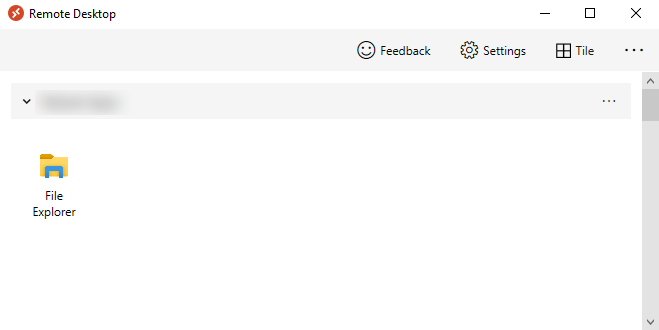
Recently, I had an issue with OneDrive when using a RemoteApp on Azure Virtual Desktop. After starting the RemoteApp, OneDrive was not signed in, and the folder was empty. Weirdly enough, this issue does not occur when using the full desktop.
Configuration
Although all configurations are in place to let OneDrive sign in automatically, it does not work when using a RemoteApp.
Group Policies

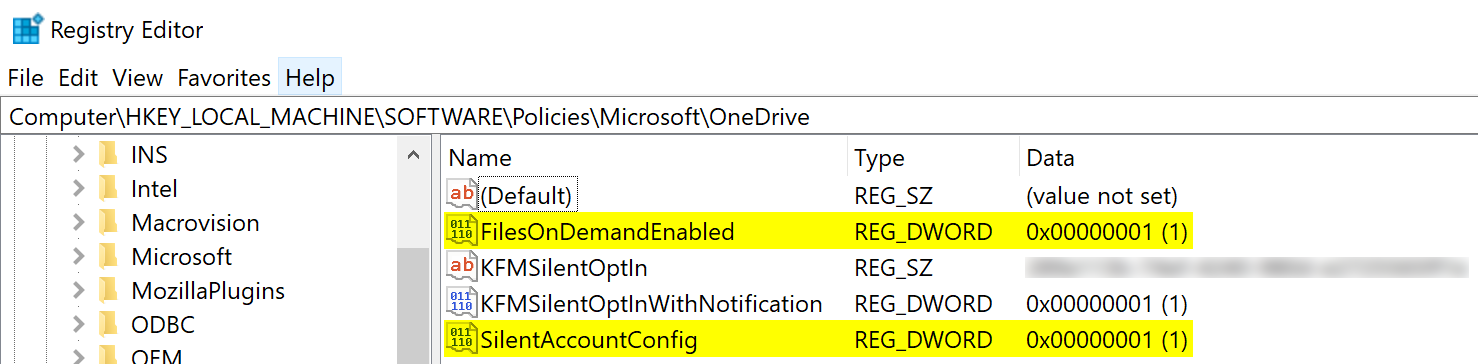
These will result in the following registry settings:
Issue
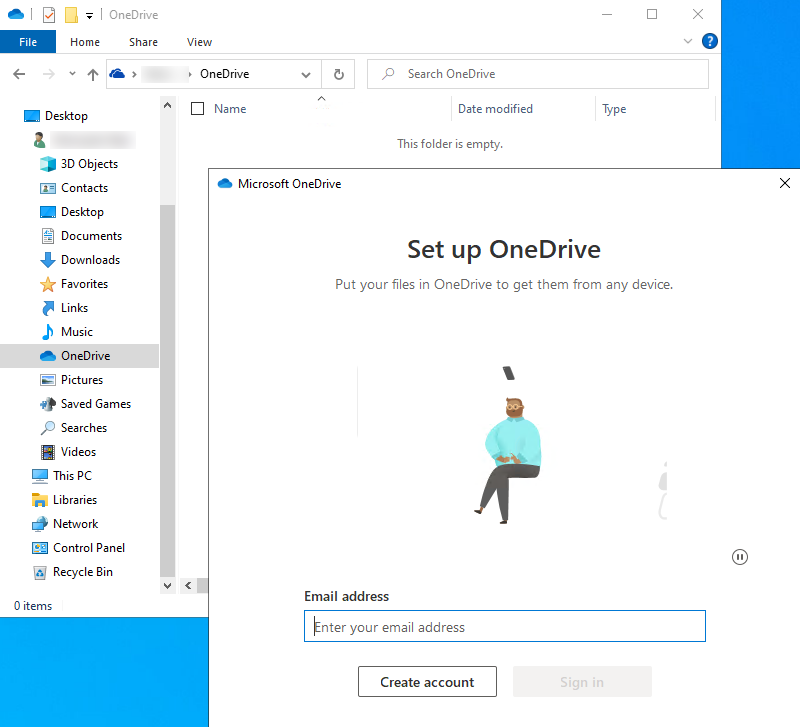
When launching the File Explorer app, it shows a OneDrive folder, but it is empty:
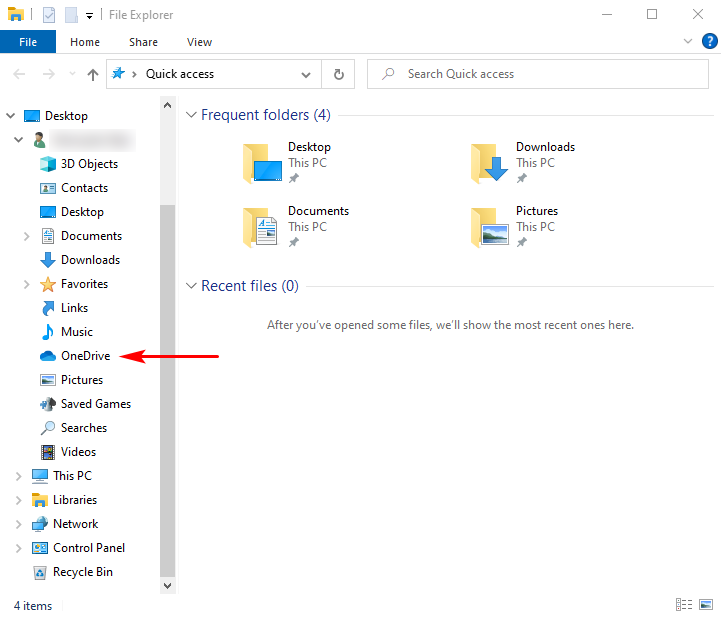
When you select the OneDrive icon, it asks for your credentials to set up:
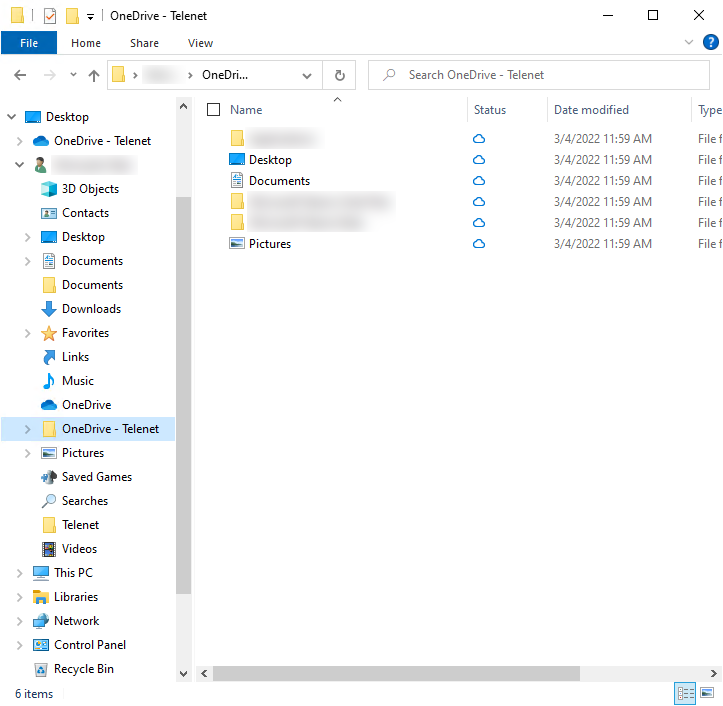
After signing in, OneDrive will download the content:
Solution
The following settings are needed to let OneDrive work with Remote Apps. Some are located in the default user registry hive and will be set for new users at first logon.
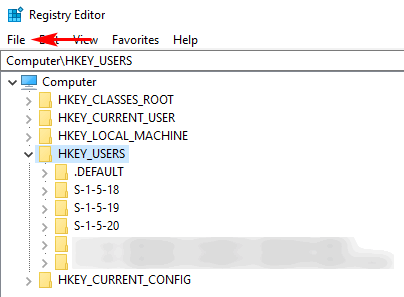
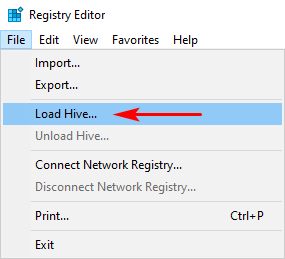
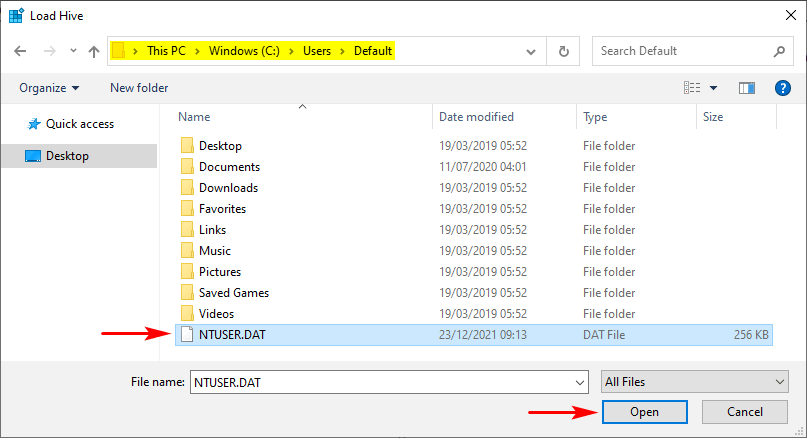
Load the default user registry hive to HKEY_USERS\DefaultProfile:

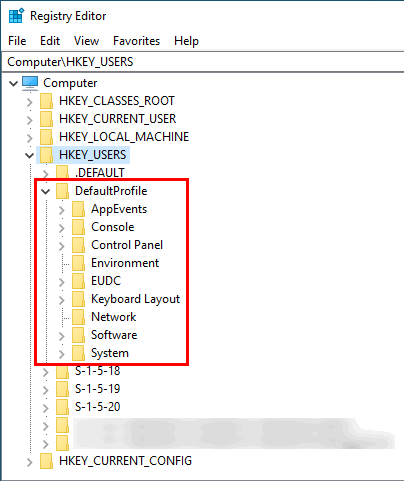
This setting should already be configured:

Add this registry key, it will launch OneDrive when using a Remote App:

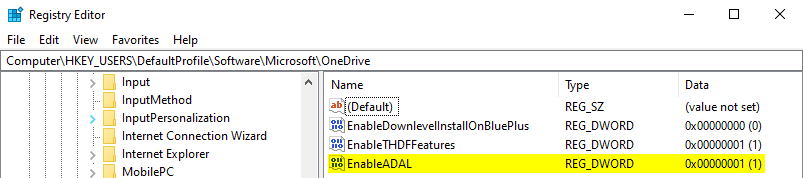
Remove the following registry key:

Some documentation advises setting the EnableADAL key to value 2, but this does not work anymore. I guess that due to an update of OneDrive or Windows, this setting is not needed anymore. So remove the EnableADAL registry key.
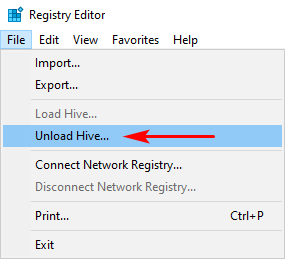
Unload the default user registry hive: